Hex Editing JPEGs with vim
2026-07-22
Hex editing JPEGs with vim
Looking around at various glitch art tutorials got me interested
in finding a more structured approach to glitch art. A lot of
the resources around glitching image, JPEGs more specifically,
use hex editors as their primary tool.
I had a feeling I should be able to achieve some kind of hex
editor in vim and found that opening the image as a binary
and passing the file into xxd would allow for a traditional
hex editor-style view of the image.
I started by looking at the JPEG Syntax and structure and referencing it
while searching through a hex view of a jpeg. I tried
editing the 0xffd8 "start of image" section and found that
changing values in this area typically resulted in a
unopen-able image. Through enough trial and error, I found
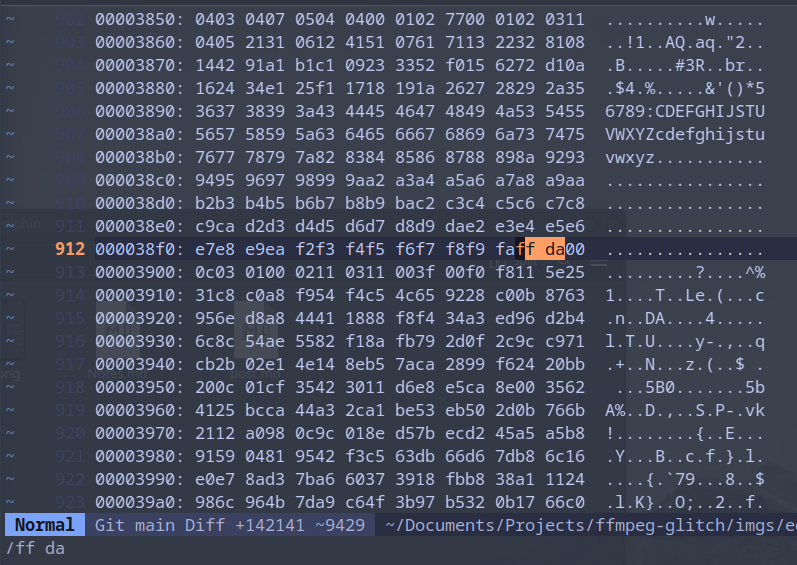
that the SOS or "start of scan" 0xffda pattern was what
I was looking for. Searching through the file for ffda,
or sometimes ff da, would drop me at the beginning of the
glitch-able data. If there were a couple hits on the search,
I'd go for the instance later in the address space. From here,
I experimented with different techniques on corrupting the
data chucks of the image.
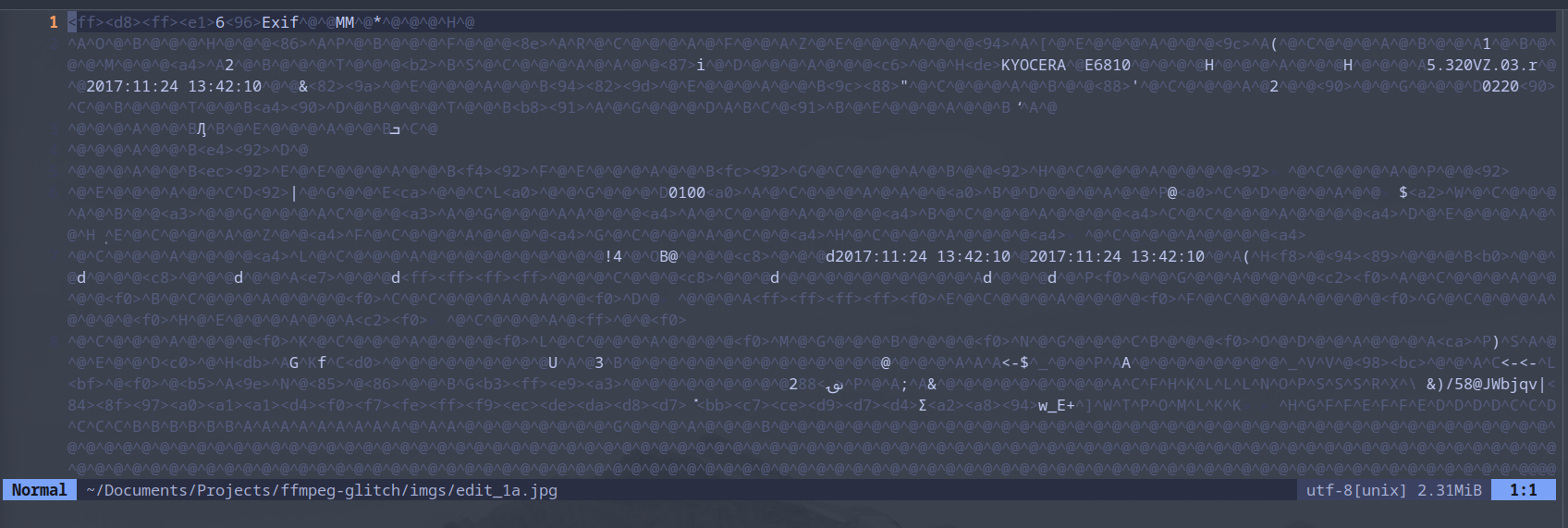
Opening the image
The process goes:
nvim -b <image> to open the image as a bianry
vim command :%!xxd to run file through xxd
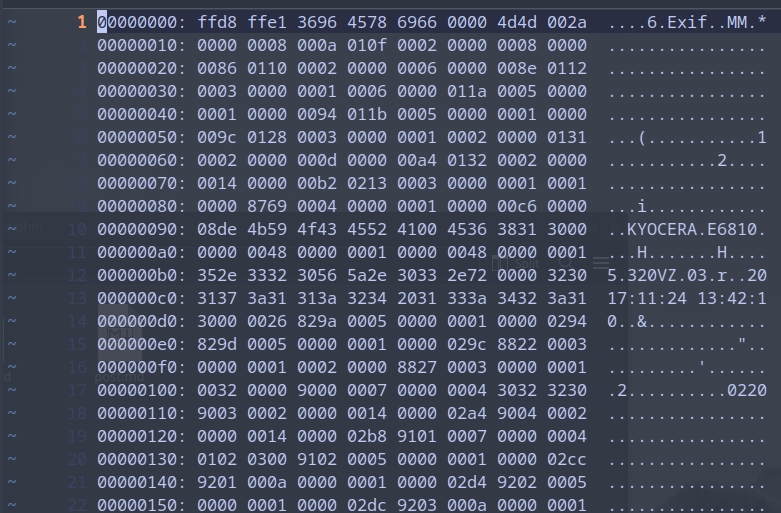
Moving around the image
Once inside the image we'll search for the SOS pattern.
/ff daor/ffdaand chose the one further down in memory
from here enter visual mode with v and then jump around
the image by typing a number and up k or down j.
Once a good chunk of data has been selected enter command
mode with : and the prompt should look like '<,'> indicating
the command will be applied to highlited text. The vim subsitute
command can now be used to change a good amount of data to
have some noticeble effects. An example command would be:
:'<,'>s/ aa/ bb/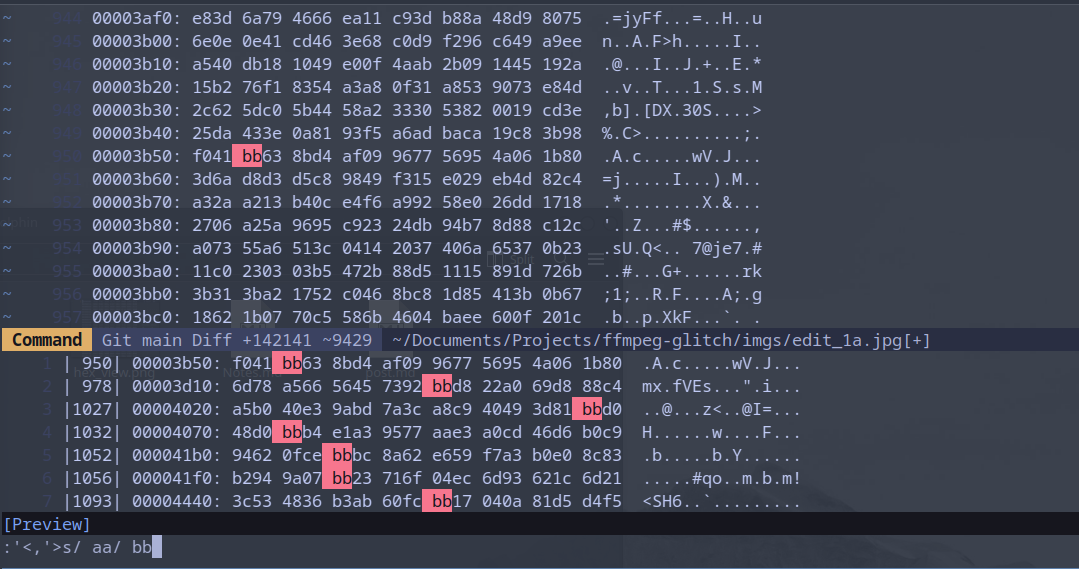
In this example putting a space before the pattern narrows down the search to only the data section of the hex view. Without the spaces the subsitution might also select memory addresses and end up breaking the image in a bad way.
running this command will show that a decent amount was edited.

After editing, revert back to the raw binary view with:
:%!xxd -r and then save with :w. It's highley recommended
to save your edit as a new file in-case the image becomes
too corrupt and wont open.
Results
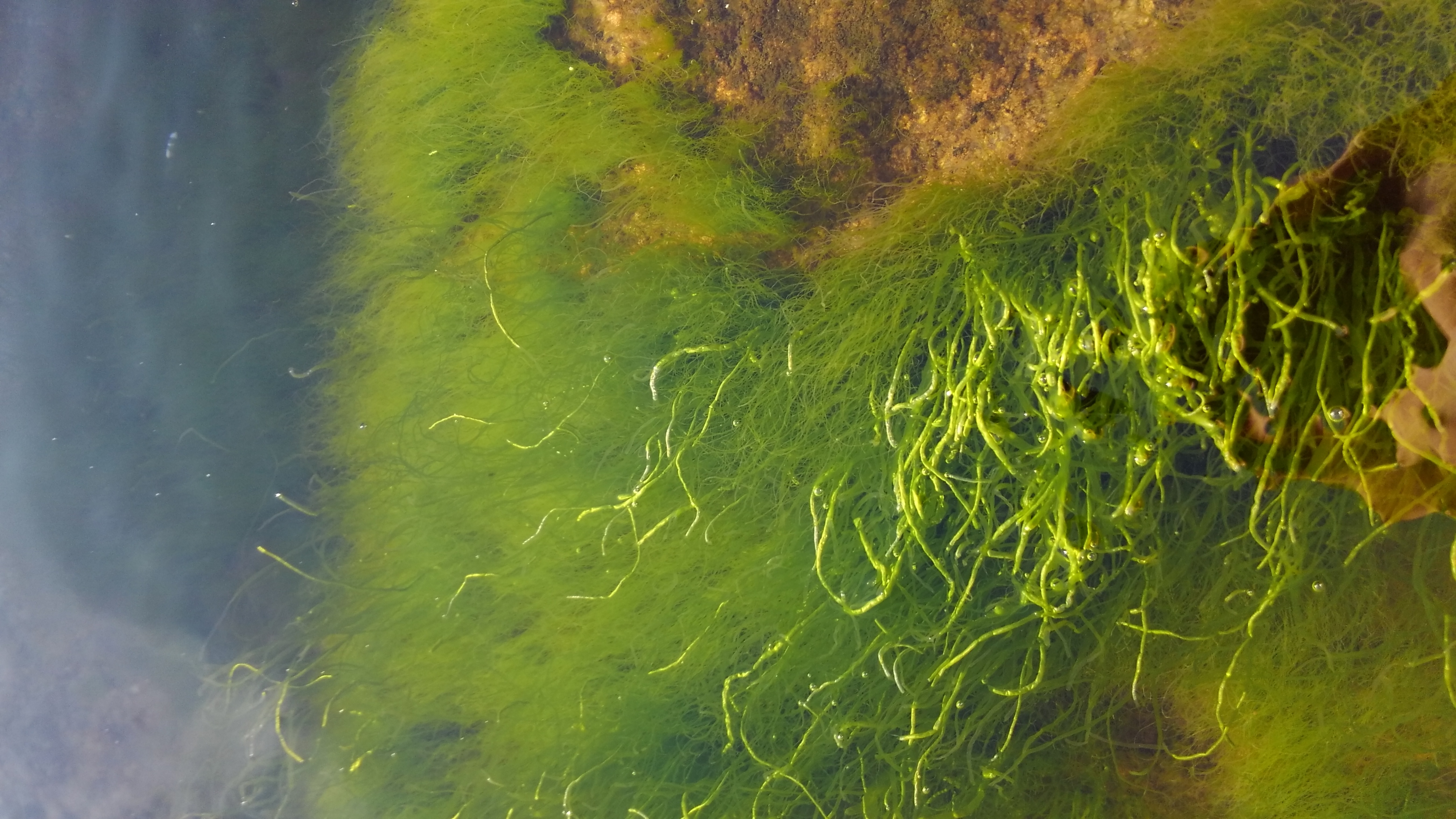
Taking this image I focused in on region 0x000b0000 up to
0x000c4300 by searching /0000b0000 moving into visual mode
and then searching for /000c4300. This allowed for a more
controlled editing process.
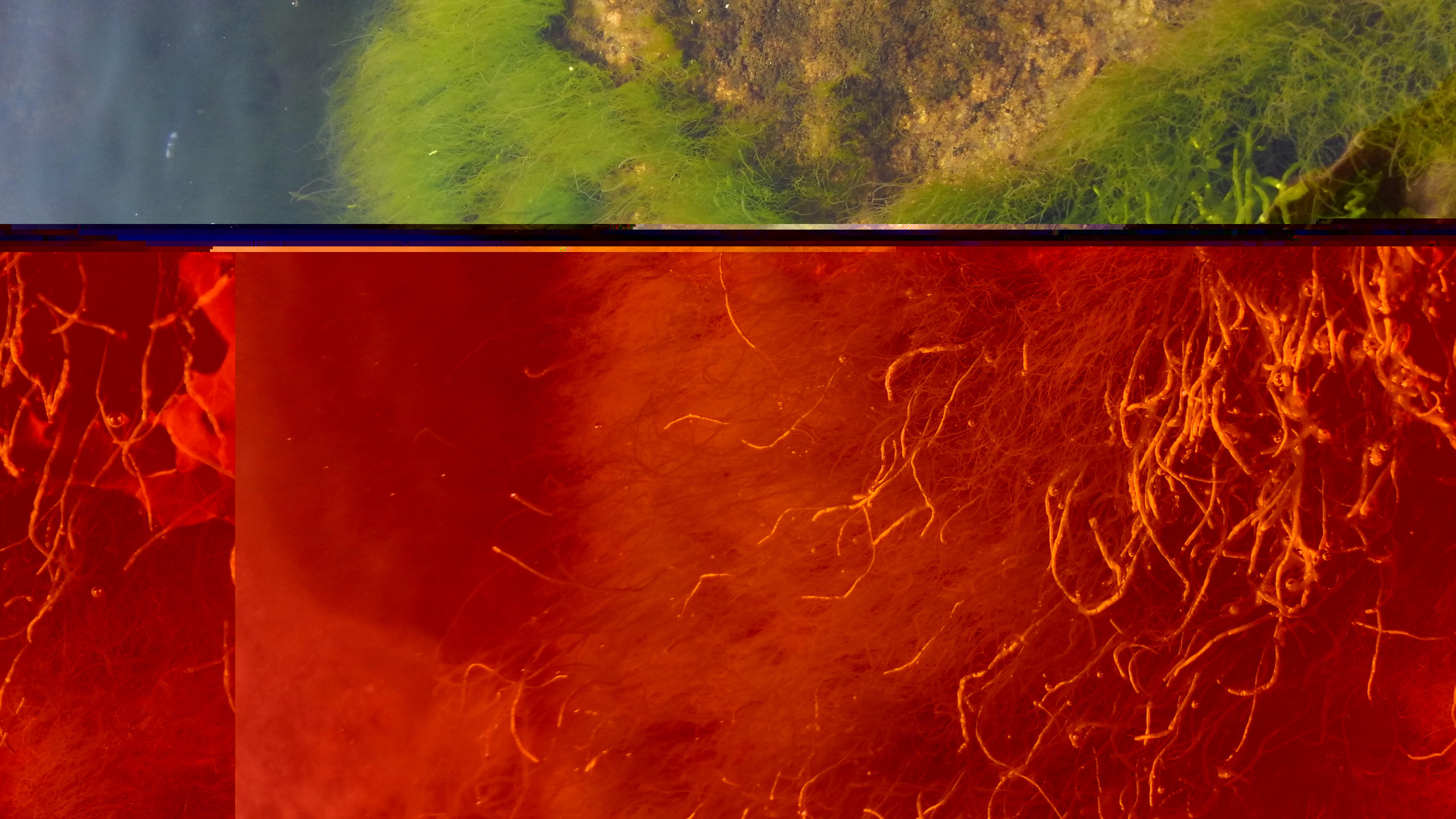
Subsituting / cc/ 11 in this region put a red tint over a
portion of the image while also putting in some long bars
of semi-solid colors before returning to the original image.
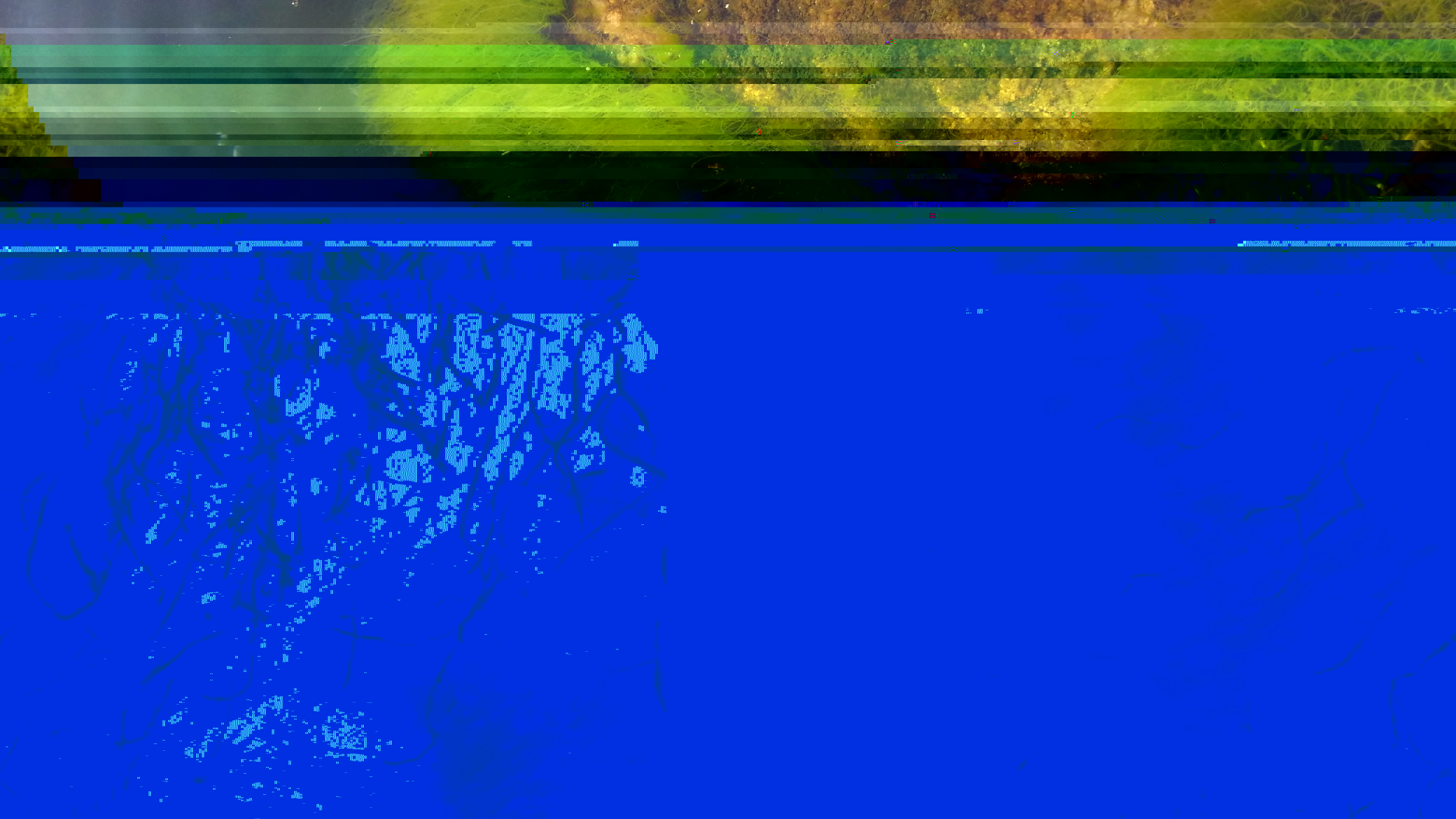
Using some smaller values I was able to get some interesting patterns and colors.
Next I'll experiment with making the same edit in multiple regions of the data to see if we can pin-point coordinates in relation to addresses.